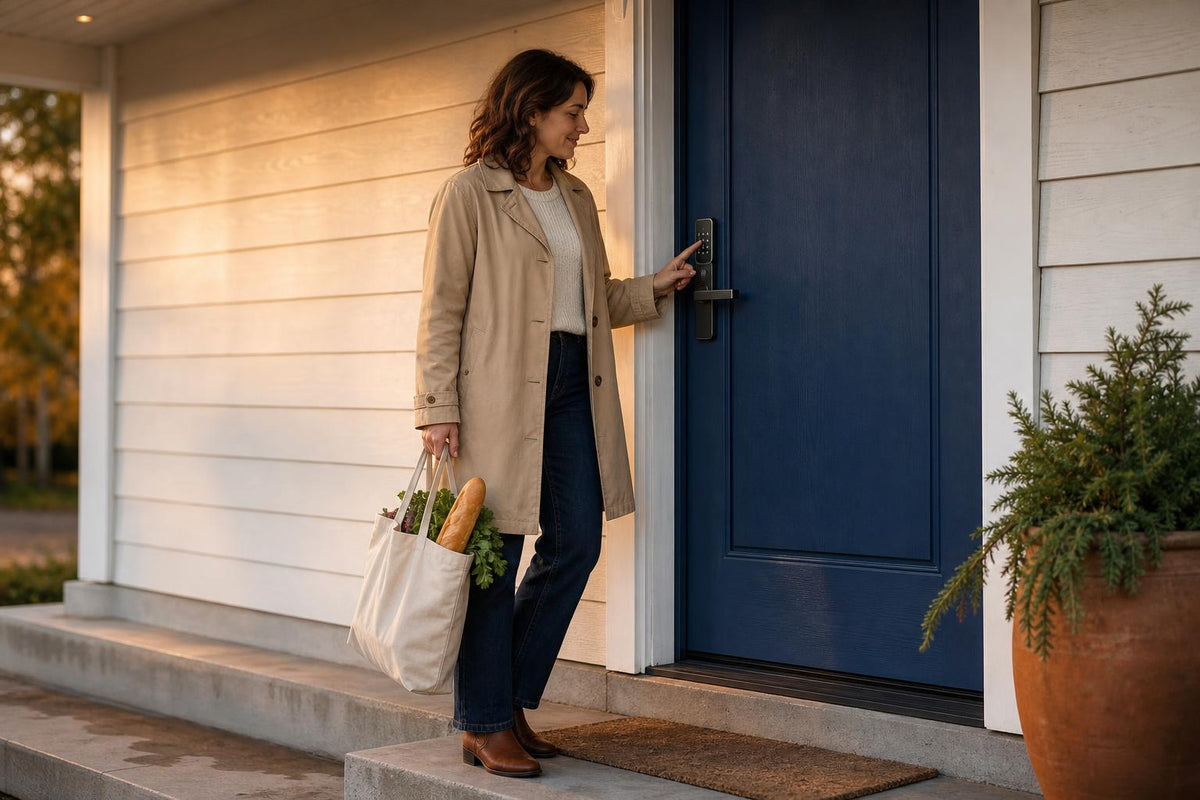
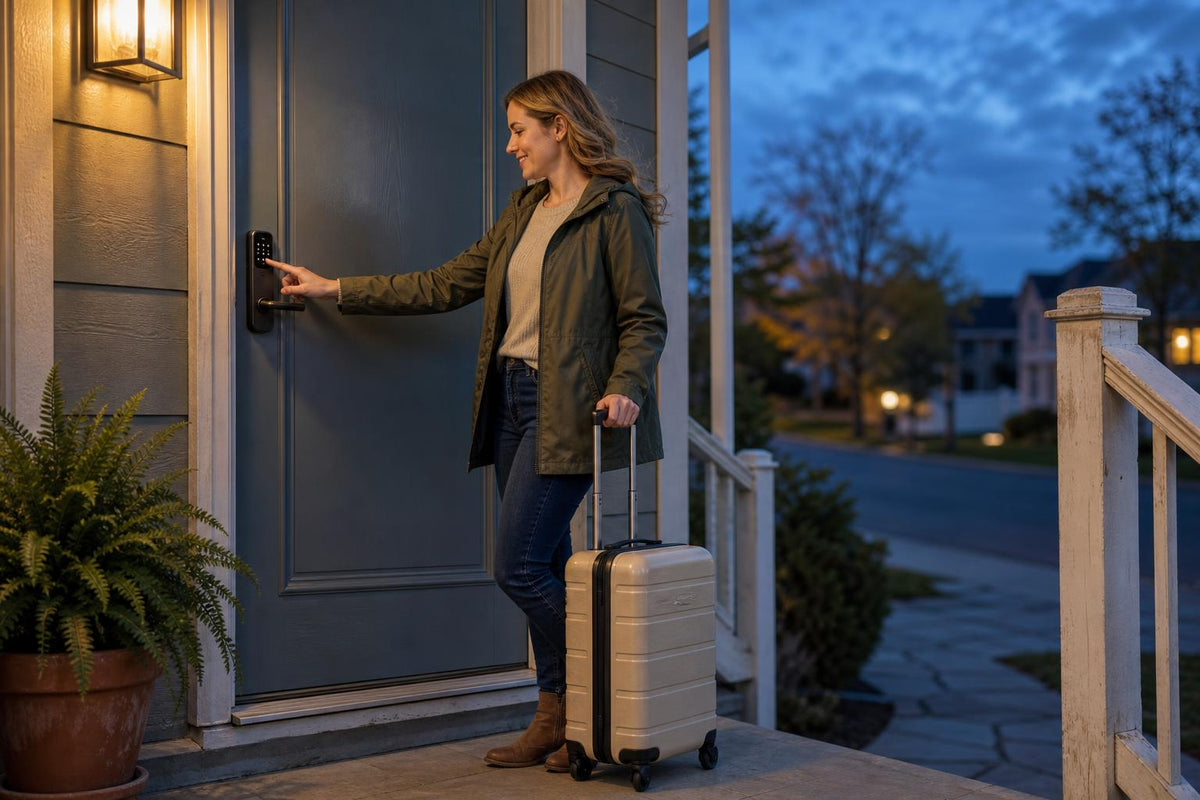
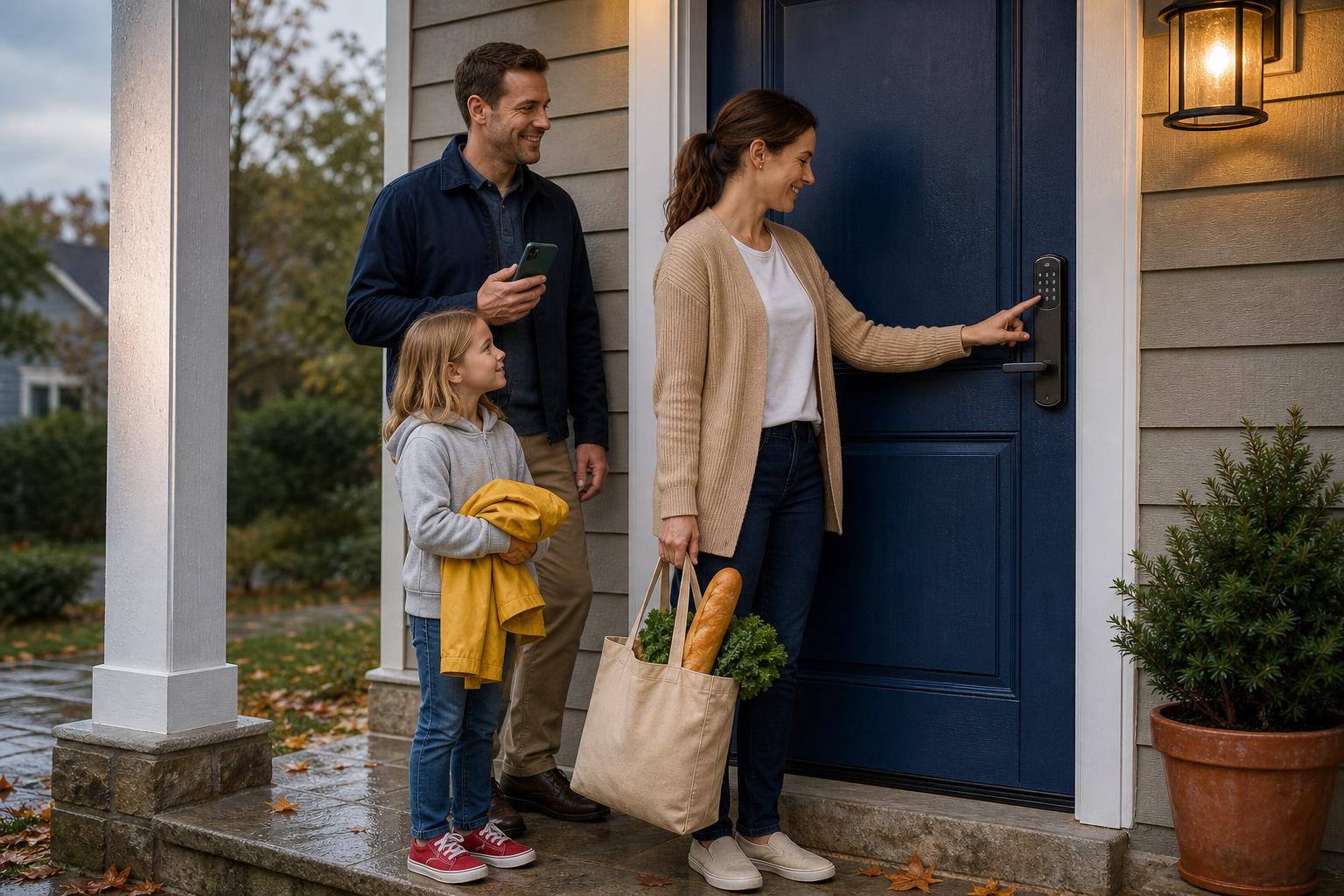
One of the best parts of upgrading to a smart lock is ditching physical keys for flexible, digital access. No more frantic calls to a locksmith or leaving a key under the mat. Now, you can grant entry to family, friends, or service providers with just a few taps on your phone.
But knowing how to add a user to a smart lock correctly is essential for keeping your home both accessible and secure. This guide breaks down the three primary ways to share access: through a mobile app, with keypad codes, and by enrolling fingerprints. We'll help you set up permissions for everyone from family members to the dog walker.
The 3 Core Ways to Add a New User to Your Smart Lock
Not all users are the same, and your access method shouldn't be either. A permanent family member needs a different type of access than a one-time delivery person. Deciding between an app invitation, a temporary code, or a fingerprint depends on trust, convenience, and how often the person needs entry.
Research from Parks Associates shows that with smart lock adoption on the rise, effective user management has become a critical feature. Thinking about the user's needs is the first step: is it your tech-savvy spouse who wants full control from their phone? Or your elderly parent who would find a simple fingerprint scan easiest?
App Invitations: Best for Family & Trusted Members
App-based access is the most powerful option for family members and trusted individuals. It gives them the ability to lock and unlock the door directly from their cell phone and gives you a detailed log of who entered and when.
Keypad Codes: The Universal Solution for Guests and Services
Keypad codes are the universal workhorse of guest access. They are the perfect solution for anyone who needs temporary entry without the hassle of downloading an app, such as Airbnb guests, cleaners, or contractors.

Fingerprint Access: Ultimate Convenience for Daily Users
For peak convenience, nothing beats biometric access. Fingerprint access eliminates the need for codes, keys, or even a phone, making it an excellent choice for family members who might forget codes or find apps cumbersome. Check out the SAWHERO Smart Fingerprint Door Lock to see this feature in action.
How to Add Users to a Smart Lock via App Invitation
For family members and other trusted individuals who will be coming and going regularly, app-based access is the most powerful option. It gives users the ability to lock and unlock the door directly from their cell phone, providing a seamless experience.
The process usually starts with the primary owner sending an invitation from their smart lock app. This invite, often a text message with a link, prompts the new user to download the same app, create an account, and accept the shared access. Once completed, the lock appears in their app, ready to use.
Step-by-Step: Sending an Invitation and Setting Permissions
While the exact steps vary slightly between brands like the Yale Assure Lock or August Wi-Fi Smart Lock, the general process is straightforward:
- Open your smart lock app and navigate to the "Users," "Family," or "Guest Access" section.
- Select the option to "Add User" or "Invite." You can typically choose a contact directly from your phone.
- Assign a permission level to the user, such as "Owner" or "Guest."
- Send the invitation. The user will receive a link to download the app and finalize their access.
Understanding User Roles: Owner vs. Guest
Permissions are what separate a trusted family member from a temporary guest. Most apps offer at least two roles. An Owner (or Administrator) typically has full control: they can lock/unlock, view the activity log, change settings, and even add or remove other users.

A Guest, however, has limited privileges, usually just the ability to lock and unlock the door. Platforms like Wyze reserve features like managing access codes for the primary owner. This ensures guests can get in and out without being able to change important security settings on your SAWHERO SentriKey Smart Lock.
Granting Access with Keypad Codes: From Permanent to Temporary
Keypad codes are the workhorse of guest access. They are the perfect solution for anyone who needs temporary entry without the hassle of downloading an app, such as Airbnb guests, cleaners, or contractors. Models like the Schlage Encode and Kwikset Halo have made this feature a staple of modern smart locks.
The main advantage of keypad codes is their flexibility. You can create different types of codes directly within the app, giving you complete control over who can enter your home and when.
How to Set Up a New User Code
Adding a new guest code is simple and can be done in minutes from anywhere:
- In your app, go to the code management or user access area.
- Choose to create a new code and give it a name you'll recognize, like "Cleaner" or "Dog Walker."
- Set a 4-8 digit PIN for the user.
- Share the code with your guest via text or another messaging app. They can start using it immediately.
Scheduling Access: The Power of Temporary & Recurring Codes
This flexibility is where smart locks really excel for managing guest access. Instead of a single code that works forever, you can create codes with specific schedules. This feature significantly enhances security and your peace of mind.

Most smart lock apps offer three scheduling options:
- Always: The code works 24/7 until you decide to delete it. Best for close friends or family who don't use the app.
- Recurring: The code is active only during specific, repeating times. For example, you can set a code for your house cleaner that only works on Tuesdays between 1 PM and 3 PM.
- Temporary: The code is valid for a limited time with a clear start and end date. This is ideal for vacation rentals or allowing a contractor access for the duration of a project.
Setting Up Fingerprints for Quick & Secure Entry
For the ultimate in convenience, nothing beats biometrics. Fingerprint smart locks eliminate the need for codes, keys, or even a phone. This makes them an excellent choice for family members who might forget codes or find apps cumbersome, like children or elderly parents.
A fingerprint is unique, so it's an incredibly secure way to grant access. You can learn more about all the ways smart locks protect your home in our guide to smart lock security features. The enrollment process is done in person at the lock and only takes a moment to complete.
The Fingerprint Enrollment Process Explained
Setting up a new fingerprint is a quick, guided process managed through the app:
- From the app's user management screen, select the option to add a new fingerprint.
- The app will instruct the user to place their finger on the lock's built-in sensor.
- They will need to lift and place their finger on the sensor multiple times from slightly different angles. This allows the lock to capture a detailed map of the print for better accuracy.
- Once the scan is complete, the fingerprint is saved and ready for use.
Some models, like those from SAWHERO, enhance this process by using a 5-time, multi-angle recording technique. This method significantly improves recognition rates, ensuring it works reliably even with the worn fingerprints of the elderly or the smaller prints of children.
Which Access Method Should You Choose? A Quick Comparison
Not sure which method is best for each person? This quick comparison table breaks down the pros, cons, and best use cases for app invitations, keypad codes, and fingerprint scans to help you decide.

| Feature | App Invitation | Keypad Code | Fingerprint Scan |
|---|---|---|---|
| Best For | Family, Partners, Roommates | Guests, Cleaners, Airbnb, Kids | Primary Residents, Daily Users |
| Pros | High control (permissions), Full activity log, Remote access | No smartphone needed, Highly flexible (temporary/scheduled), Easy to share | Fastest access, No keys/codes to remember, High security |
| Cons | Requires guest to install app & create account, Learning curve | Codes can be forgotten or shared, Less detailed tracking | User must be physically present to register, Sensor can be affected by dirt/moisture |
| Setup Effort | Medium (Requires coordination) | Low (Generate & share) | Medium (Requires physical presence) |
Security & User Limits: What You Need to Know
Once you've added users, it's important to understand your lock's capacity and security features. This helps you maintain a secure and efficient access system for your home.
How Many Users Can a Smart Lock Handle?
The number of users a smart lock can store varies widely. Most residential models can handle 19-30 unique user codes, which is plenty for the average family and a few guests. However, higher-end locks from brands like Yale or Kwikset can store up to 250 codes, making them suitable for rental properties.
Keeping Your Access Secure: Encryption and Data Storage
It's natural to have questions about the security of your access data. Reputable smart locks protect your information using robust encryption standards, typically AES-128 or AES-256, the same level of security used by banks. This encryption protects the communication between your lock, your phone, and the cloud.
To further enhance privacy, some manufacturers store sensitive biometric data locally on an encrypted chip inside the lock itself, not in the cloud. This approach minimizes the risk of your data being exposed in a remote breach. If you have more questions about security, you can often find detailed information in a brand's Help Center.
Frequently Asked Questions (FAQ)

Can I add a user who doesn't have a smartphone?
Of course. The best way is to create a numeric keypad code for them. It's the perfect solution for providing access to children, elderly relatives, or temporary visitors who don't use a smartphone.
How many users can a typical smart lock support?
Most smart locks designed for homes support between 19 and 30 individual users (either codes or fingerprints). This is generally more than enough for the average family. Some high-end models can support up to 250 users.
Is it safe to give temporary access to strangers?
Yes, it's very safe. By setting up a temporary or recurring code, access is automatically revoked after the scheduled time expires. You don't have to remember to manually delete it, which significantly reduces security risks.
What's the difference between an "Owner" and a "Guest" in the app?
An "Owner" or administrator has full permissions, including adding and deleting users, changing lock settings, and viewing all activity logs. A "Guest" typically only has permission to lock and unlock the door within their assigned schedule.
How do I revoke someone's access?

You can instantly remove a user's access through the smart lock app. Just navigate to the user management section, select the user or code you want to remove, and tap "Delete." The change takes effect immediately.
What should I do if my lock's battery dies?
Most smart locks provide low-battery warnings well in advance. If the batteries die completely, you can typically use a physical key or an emergency power port (often a Type-C or Micro-USB) on the bottom of the lock with a power bank to get inside.
Master Your Home Access with Confidence
Learning how to add users to your smart lock transforms it from a simple gadget into a powerful home management tool. You have complete control over who enters your home, whether it's setting up a recurring code for your cleaner or enrolling your child's fingerprint for key-free entry after school.
By choosing the right method for each person, you create the perfect balance of convenience and security. You can confidently manage your home's access from anywhere, at any time.
Ready to take full control? Explore the SAWHERO SentriKey Smart Fingerprint Door Lock and see how simple and secure home access can be.