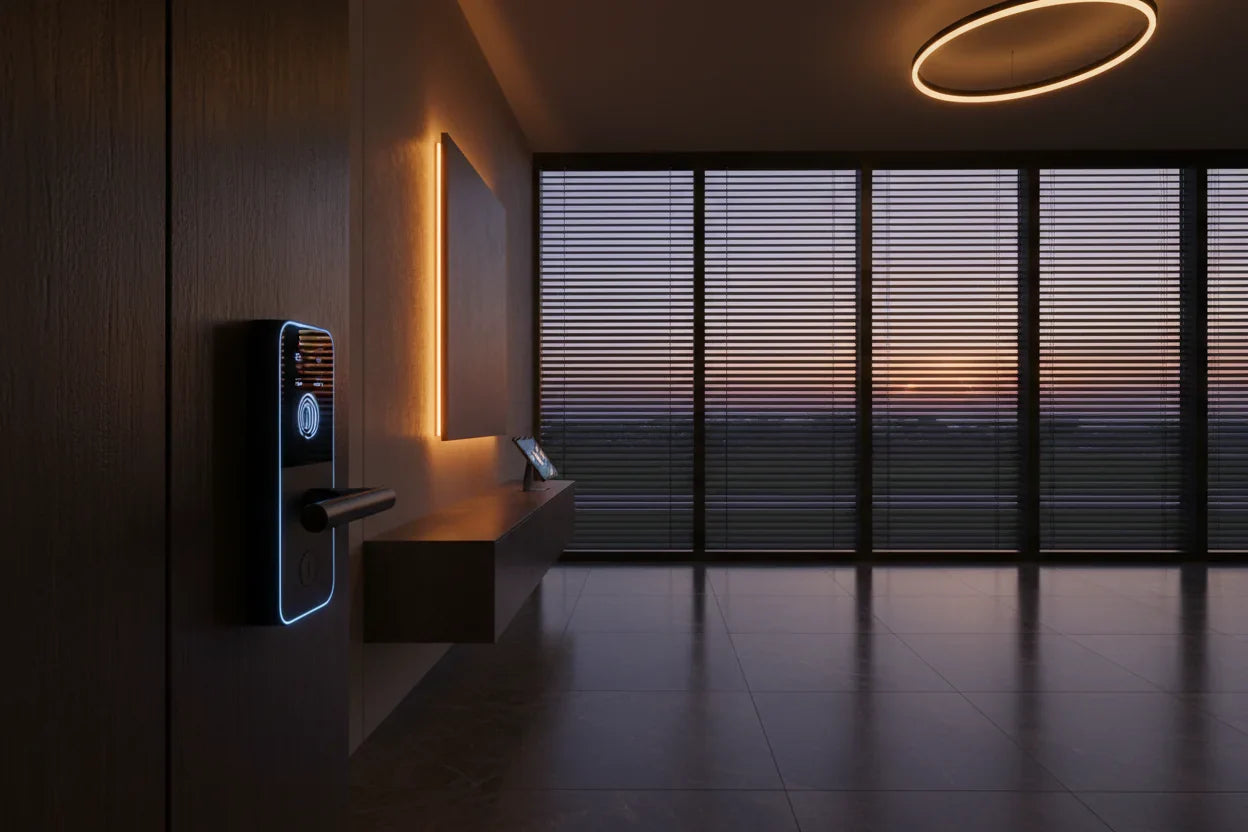
Why Firmware Updates Are Essential for Your Smart Lock
Think of your smart lock's firmware as its digital immune system. A smart lock firmware update isn't just about adding a new feature; it's a critical security task that protects your home. Ignoring these updates leaves your front door vulnerable to digital threats you can't see.
Security researchers constantly identify new ways hackers could try to exploit smart devices. An analysis of common threats identifies "Firmware Abuse" as a major risk, where attackers target outdated software to gain control. Failing to update is like leaving a spare key under the welcome mat for tech-savvy intruders.
Patching Critical Security Gaps to Prevent Unauthorized Access
The primary reason for any firmware upgrade is to patch security holes. For example, researchers discovered a Bluetooth vulnerability in the microcontroller used by the Yale Linus smart lock. Yale promptly patched this flaw with a software update, effectively neutralizing the threat.
These updates are a direct response to potential attacks, ensuring that known exploits can't be used to compromise your lock. Reputable brands are in a constant race to stay ahead of threats, and applying their updates is how you stay protected.
Unlocking New Features and Boosting Performance
Firmware updates aren't just about defense; they also improve your lock's performance and add new capabilities. For instance, a recent update for the Yale Linus Smart Lock L2 introduced Matter compatibility, integrating it more smoothly into various smart home ecosystems.

Manufacturers like August and U-tec also use updates to improve connection speed, enhance fingerprint reliability, and even extend battery life. This means the lock you buy today can actually get better over time.
The Real Risks of Running Outdated Firmware
Running an old firmware version exposes your home to known, preventable threats. Security experts and locksmiths agree that this is one of the biggest mistakes a smart lock owner can make. It leaves the door open for potential exploits that have already been fixed by the manufacturer.
This is why choosing a brand that consistently provides security patches is so important. When you understand why a smart lock is a good idea for your home, you'll see that ongoing software support is just as crucial as the physical hardware.
A Universal Guide to OTA Firmware Updates
While the exact steps can vary slightly by brand, the Over-the-Air (OTA) update process is remarkably consistent across the industry. This universal guide gives you a clear framework for completing your smart lock firmware update smoothly and successfully.
How to Check Your Current Firmware Version

Before you can update, it's helpful to know what version you're currently running. Most smart lock apps have this information tucked away in the device settings menu.
Typically, you'll navigate to your specific lock within the app and look for a section called "Device Information," "Settings," or "About." As shown in videos for brands like NUKI, this section will display the current firmware version number, which you can compare to the latest version listed on the manufacturer's support site.
The Standard Step-by-Step Update Process
Once you've received an update notification in your app, follow these general steps:
- Get Close: Make sure your smartphone is within Bluetooth range of the smart lock, usually just a few feet away.
- Check Power: Ensure your smart lock has sufficient battery life. An update that fails due to low power can cause issues.
- Open the App: Launch the manufacturer's app and keep it open and in the foreground on your phone. Don't switch to other apps during the process.
- Initiate the Update: Tap the notification or button to begin the firmware download and installation.
- Be Patient: The process can take anywhere from 5 to 15 minutes. Wait for the app to confirm that the update is complete.
Pre-Update Checklist for a Smooth Process
To prevent common update failures, run through this quick checklist before you start. These tips can save you a lot of headaches.
- Strong Connection: Ensure you have a stable Bluetooth or Wi-Fi connection.
- Sufficient Battery: If your lock's batteries are low, replace them before starting the update.
- Minimize Interference: Step away from other wireless devices that could interfere with the signal, like microwaves or other Bluetooth gadgets.
- Don't Disturb: Avoid using the lock or closing the app until the update confirmation appears.
Firmware Updates: August, Schlage, Yale & Kwikset Compared

Every brand has its own nuances when it comes to the firmware upgrade process. Understanding these differences can help you manage your specific device more effectively. Here's a quick comparison of how the leading brands handle their OTA updates.
Comparison Table: Smart Lock Firmware Update Processes
This table breaks down the key aspects of the update process for major smart lock brands, helping you see at a glance what to expect from your device.
| Brand | Update Method | Typical Duration | Key Requirements | Special Notes |
|---|---|---|---|---|
| August | Automatic via App (Bluetooth) | A few minutes | App open, within Bluetooth range | Updates focus on performance/speed. |
| Yale | App Notification (Bluetooth) | 5-15 minutes | App open, within Bluetooth range | Can also update accessories like keypads. |
| Schlage | Automatic via Wi-Fi or Manual | Varies | Connected to Wi-Fi | Some HomeKit users report needing the Schlage app. |
| Kwikset | App Notification (Bluetooth) | 7-10 minutes | App open, close to the lock | Requires lock recalibration after update. |
| SAWHERO | App-driven OTA (Wi-Fi) | 5-10 minutes | Stable Wi-Fi Connection | Updates delivered seamlessly via the SAWHERO app for security and new features. |
Special Considerations for Apple HomeKit Users
If you primarily use your smart lock through Apple HomeKit, updates can sometimes be confusing. While firmware updates can be pushed through the Apple Home app, this isn't always the case.
Some users, particularly with Schlage locks, have noted that they never received an update notification from HomeKit. They had to open the manufacturer's dedicated app (e.g., the Schlage Home app) to trigger the firmware upgrade. If you're a HomeKit user, it's a good practice to periodically open the native brand app to check for any pending updates.
How to Fix a Failed Smart Lock Firmware Update

Nothing is more frustrating than a failed electronic lock update that leaves your device unresponsive. Fortunately, most update problems can be fixed with a few simple troubleshooting steps. Don't panic; start with this practical checklist.
Your Checklist for Fixing a Stuck Update
If your update gets stuck or fails, work through these steps in order. These are compiled from real user experiences and expert tutorials.
- Move Closer: Get as close to the lock as possible to ensure the strongest Bluetooth or Wi-Fi signal.
- Restart the App: Force-close the smart lock app on your phone and reopen it to clear any glitches.
- Power Cycle the Lock: This is a key step that often works. For many locks, like the Schlage Encode, users found success by removing the battery pack for a minute and then re-inserting it. This forces a hard reboot of the lock.
- Check Your Batteries: A weak battery might not have enough power to complete the update process. Try installing a fresh set of batteries and attempt the update again.
Don't Forget: Post-Update Recalibration
Once your firmware update is successful, you might have one crucial step left. Some brands, like Kwikset and SimpliSafe, require you to recalibrate the lock after an update. This process ensures the lock correctly understands its locked and unlocked positions.
Recalibration prevents issues like the deadbolt not fully extending or retracting. The option is usually found in the lock's settings within the app. If you encounter any issues with this step, the SAWHERO Help Center provides guides that can walk you through similar maintenance processes.
Smart Lock Firmware Update FAQ

How often should I update my smart lock firmware?
You should perform an update as soon as you receive a notification from the manufacturer. These updates often contain critical security patches, so it's best not to delay.
Is it safe to perform an electronic lock update over Wi-Fi or Bluetooth?
Yes. Reputable brands like SAWHERO use encrypted channels to transmit update files. This ensures the process is secure and the firmware cannot be tampered with during the transfer.
What happens if my phone dies or Wi-Fi disconnects during the update?
Most smart locks have a failsafe mechanism. If an update is interrupted, the lock will typically revert to its previous firmware version. You can simply recharge your phone, reconnect to the network, and try the update again.
Can I roll back to a previous firmware version if I don't like the update?

Generally, no. For security reasons, manufacturers prevent downgrading to older firmware, which may contain known vulnerabilities that the new version was designed to fix.
Will a software update delete my existing users, PIN codes, or fingerprints?
No, a firmware update should not affect your stored user data. The update modifies the lock's operating system but leaves your personalized settings, PINs, and fingerprints intact.
Does my lock always need to be online to receive updates?
It depends on the lock. Models that update via Wi-Fi, like the Schlage Encode, need to be online to receive automatic updates. For locks that update via Bluetooth, you only need to be connected when your phone is near the lock with the app open.
Firmware Updates: A Simple Habit for Lasting Security
Regularly performing a smart lock firmware update is one of the simplest yet most powerful habits you can adopt for your home's security. It's a quick task that ensures you're protected against the latest threats while enjoying the best performance your device can offer.
Treating firmware updates as a routine part of your smart home maintenance is key to long-term peace of mind. Brands like SAWHERO make this easy with a user-friendly app and reliable OTA updates, ensuring your home's first line of defense is always strong. Explore the SAWHERO Smart Fingerprint Door Lock to see how effortless security maintenance can be.